

RevPAR Calculator for Hospitality Teams
A RevPAR calculator helps hotels and short-term rental operators measure how efficiently they turn available inventory into room revenue. It’s one of the most useful hospitality metrics because it blends rate and occupancy into a single number that’s easy to compare across dates, properties, or market conditions.
Two Simple Ways to Calculate RevPAR
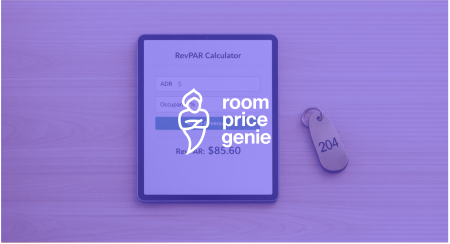
This tool supports the two standard approaches used in revenue management. You can calculate revenue per available room by dividing total room revenue by total available rooms, or by multiplying ADR by occupancy rate. Both methods are widely used, and showing each formula clearly makes it easier to verify your numbers.
Built for Hotels and Short-Term Rentals
Whether you manage a boutique hotel, a vacation rental portfolio, or a larger lodging operation, quick access to a reliable RevPAR calculator can save time during reporting and pricing reviews. The tool accepts occupancy as either a percentage or decimal, validates common input mistakes, and displays a clean breakdown of the result.
For owners and managers, this makes performance analysis more practical. Instead of juggling spreadsheets for a basic lodging KPI, you can calculate the metric in seconds and move on to the decisions that matter.
FAQs
What is RevPAR, and why does it matter?
RevPAR stands for Revenue Per Available Room. It shows how much room revenue you generate for each available room, whether that room was sold or not. Hotel owners, managers, and revenue teams use it because it combines pricing and occupancy into one practical number, making it easier to evaluate
What’s the difference between calculating RevPAR from revenue versus ADR and occupancy?
Both methods should lead to the same result when the underlying numbers match. Using room revenue divided by available rooms is helpful when you already have topline room revenue for a period. Using ADR multiplied by occupancy rate is often more convenient when you’re working from operating metrics and want a quick performance check.
Can I enter occupancy as 75 instead of 0.75?
Yes. This tool accepts either format. If you enter a number greater than 1, it treats it as a percentage, so 75 becomes 0.75. If you enter 0.75, it treats it as a decimal. That makes the calculator easier to use while still keeping the math accurate.
To learn how RoomPriceGenie can help your property boost hotel sales and increase your property’s profitability, start your free trial of our automated pricing solution today!